Validating Your Collection Structure and Metrics with Test Logs: Sending Event Logs, Part 2
Sending test logs before developing the event-sending feature lets you check in advance whether events and properties are collected in the intended structure and data types, and whether the collected data can produce the metrics you need. In Hive Analytics, you send test logs with ETL Simulation in Data > Event, check the collected results in Data Preview and BigQuery, and check metric setup in Create. If you test in the production environment, use a separate test App ID and decide how to exclude test data from metric aggregation as well.
Why You Should Validate Data Before Developing the Event-Sending Feature
"Defining Your Log Collection Structure with Event Templates: Sending Event Logs, Part 1" covered how to define the events and properties to analyze and prepare the source code for sending logs. This part covers how to send test logs before requesting actual development to validate the event's collection structure and whether it can be used for metrics.
Before developing the event-sending feature, you need to confirm that data is collected correctly and that the structure can produce the metrics you want. Even if event names and properties are already decided, if the actual value formats or data types differ from your analysis criteria, missing properties or metric calculation problems are discovered only after development is finished.
After sending test logs, analysts check whether events and properties are collected in the intended structure and whether all the properties the metrics need are included. They also check each property's data type and value format, and see whether applying calculations and dimensions to the collected data produces the metrics they want.
For example, if a content completion event does not include a player identifier, you cannot calculate the number of players who completed the content. If play time is set as a string or its unit is not defined, you cannot check average play time on the intended basis either. Sending sample data before development and checking the actual collected form and metric results lets you finalize the event structure and sending criteria.
How to Validate Test Logs in Hive Analytics
In Data > Event in Hive Analytics, you can check registered events and properties and send test logs through ETL Simulation or a code implementation. Entering sample values that fit your analysis scenario in each property lets you check data collection results and whether the data can be used for metrics before developing the actual log-sending feature.
Test log validation proceeds in this order: prepare the sending environment and App ID, send the logs, then check the collected results and metric setup.
- Select the environment
Choose the sandbox or production environment to send test logs to, depending on what you want to validate. When checking results in Data Preview and BigQuery, query the data of the environment you sent the logs to. - Prepare the App ID
Prepare an App ID registered in App Center or project settings in the Hive Console.Separating Test Data in the Production Environment
To clearly separate test data from actual service data in the production environment, we recommend registering and using a separate test App ID. If you test before the game launches, set the official launch date inTime Settingsas the metric start date to exclude data collected before launch from metric aggregation. If the game is already in service, register the test App ID inMetric Filtersor register test accounts inExcluded User Managementto exclude that data from metric aggregation. Choose the method that fits how you separate test data and the game's service status. - Send test logs
Analysts can send logs directly from ETL Simulation, or developers can implement the code shown in Source Generation and send them. Enter sample values that assume your analysis scenario in the event properties, and before sending, check that player identifiers, content information, numeric properties, and so on match the defined data types and value formats. - Check the collected results
Check in Data Preview whether the event was received and which property values were delivered. If you need to examine the raw data closely, query the event data directly in BigQuery to check that the entered values were stored with the correct property names and data types.Requesting BigQuery Query Access
You can query the raw data of collected events and properties directly in BigQuery. To use BigQuery, obtain Hive Analytics administrator permissions, then request BigQuery query access from the Hive Analytics account menu. - Check the metric setup
InCreate, select the collected event as a measure and apply the calculations and dimensions you need. Check whether the calculated figures match your expectations and whether the results are split by property values as intended, to verify that the data can produce metrics that fit your analysis.
Validating an Event with contents_success Test Logs
To analyze the number of players who completed content, average play time, and the highest score, you need to verify that the contents_success event is collected in the intended structure. The process from environment selection to checking the metric setup is as follows.
1. Select the environment
To check the data structure that will be used in the actual service, run the validation in the production environment. Sign in to the production Hive Analytics console, select the contents_success event in Data > Event, and go to the ETL Simulation tab.
2. Prepare the App ID
Check that the test App ID to be used in the production environment is registered in App Center or project settings in the Hive Console.
3. Send test logs
Test logs can be sent directly by analysts from ETL Simulation, or by developers applying the code provided in Source Generation to the game. Either way, you must enter the required properties for sending logs: userId, deviceId, identifierProvider, appId, eventTime, and eventName. Enter hive for identifierProvider and the test App ID you prepared for appId. appIdGroup is generated automatically when you enter appId, so you do not need to enter it.
3.1 Sending from ETL Simulation
Check the properties and data types predefined for the event, and change the values of the six required properties. Then change characterLv, modeTypeId, modeTypeName, score, and playTimeSec to sample values that fit your analysis scenario and send the test log.
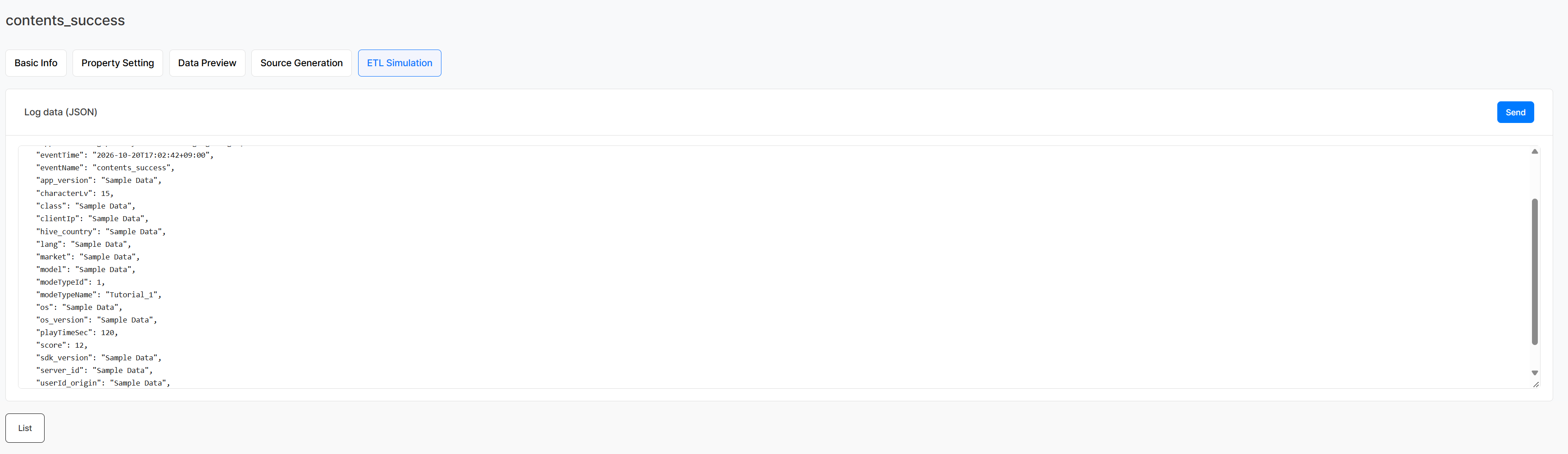
contents_success test log.3.2 Sending with Generated Source Code
Developers check the code for their development environment in Source Generation and connect the six required properties and the event's detailed property values to actual game data. After applying the code so that the contents_success event fires when content completion is confirmed, they run the implemented feature to send a test log. For implementation details, see the event transmission guide on the Hive Developers site.
Precautions When Sending Logs
If the following rules are not followed, logs are not collected normally and are stored in a separate quarantine table,t_raw_event_log_rescue.
- Enter
eventTimein RFC 3339 format including the time zone, within the range of 10 years in the past to 5 years in the future from the current time. Logs with an invalid format or outside the allowed range are quarantined.- Enter an App ID registered in App Center or project settings in the Hive Console for
appId. Logs with an unregistered or incorrect value are quarantined.
4. Check the collected results
4.1 Checking in Data Preview
After sending, check in Data Preview whether contents_success was received. Also review the player and device identifiers, App ID, event name, and the property values included in attributes.
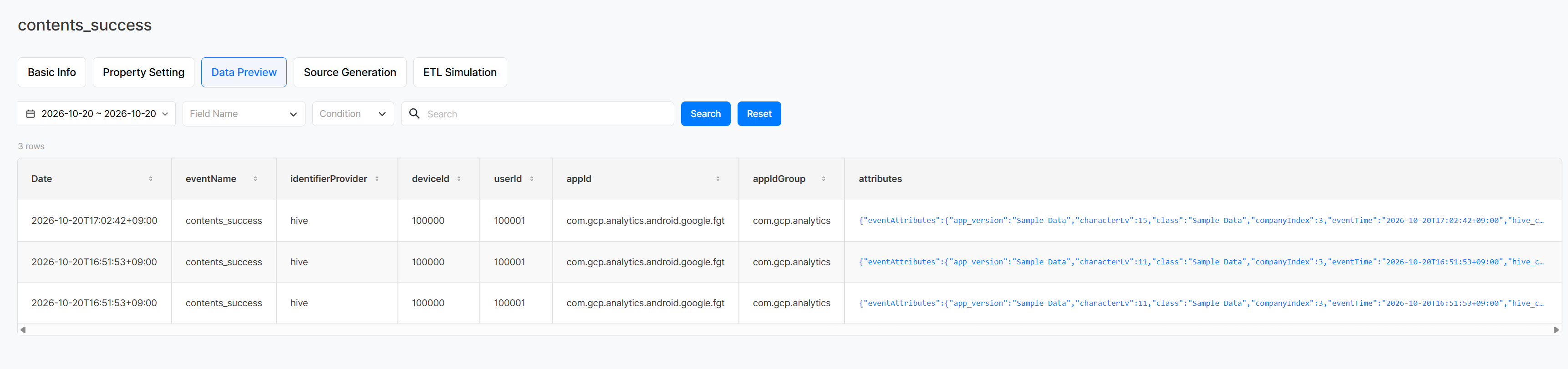
contents_success was received and which property values were delivered.4.2 Checking in BigQuery
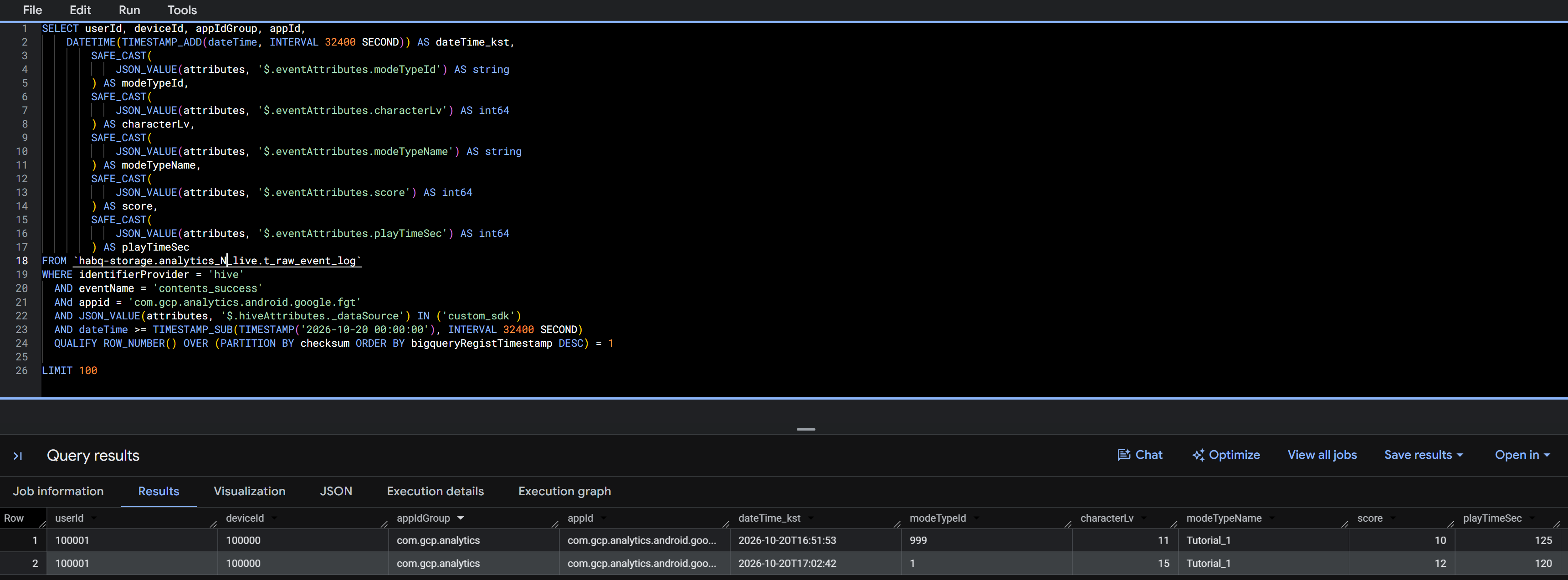
To examine the raw data more closely, query the data in BigQuery using the test App ID and event name as conditions. Check that the characterLv, modeTypeId, modeTypeName, score, and playTimeSec you sent were stored with the intended values and data types.
5. Check the metric setup
If the collected results look fine, select the contents_success event in Create and set up the metrics as follows.
- Apply
COUNT DISTINCTtouserIdto check the number of players who completed content. - Apply
AVGtoplayTimeSecto check average play time. - Apply
MAXtoscoreto check the highest score. - Select
characterLvandmodeTypeNameas dimensions to compare results by character level and by content.
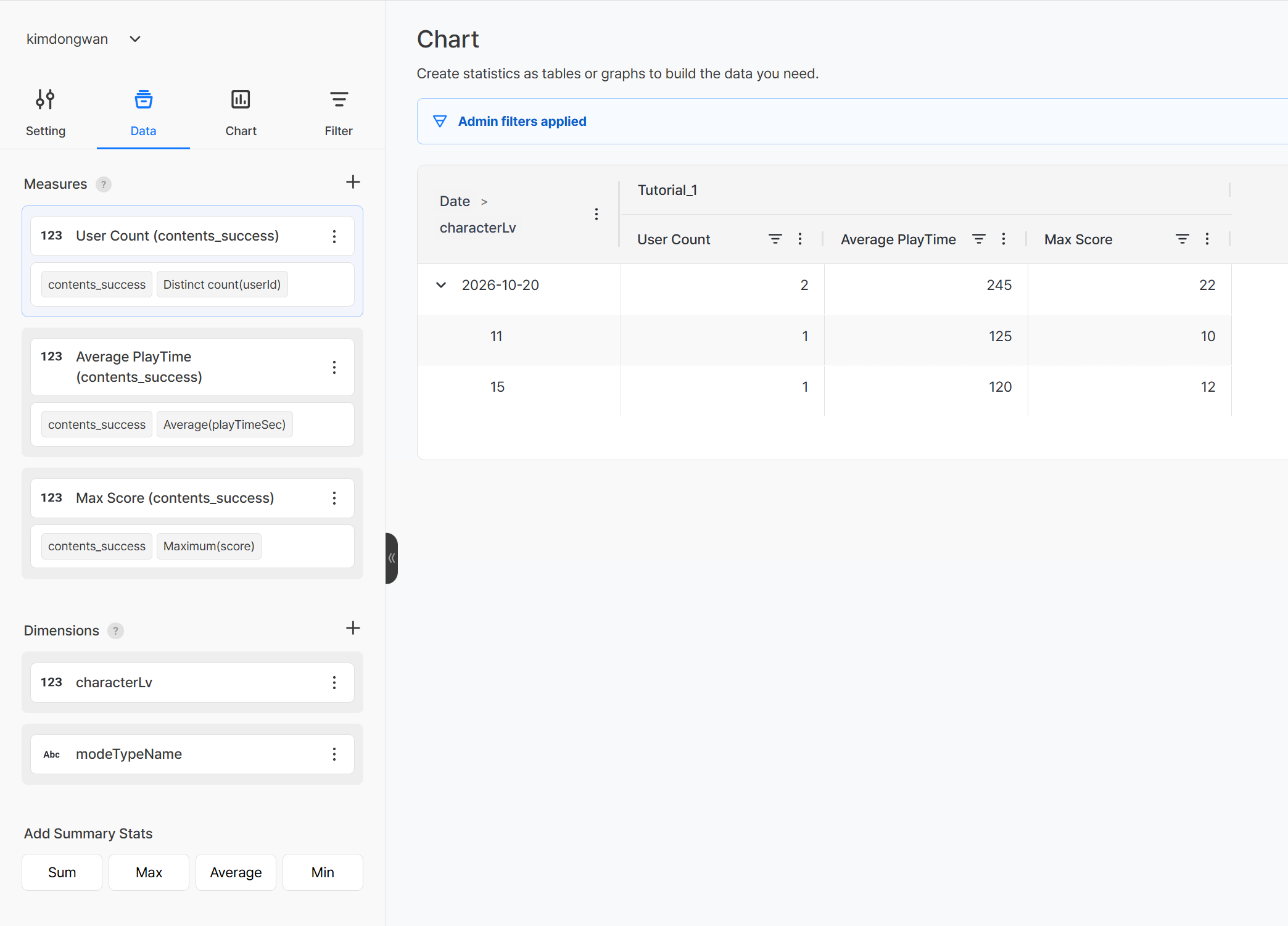
If you can build completing players, average play time, and the highest score, and the results are split by character level and content, the event is ready for your analysis. If values are missing or the results differ from what you expected, recheck the property names, data types, and sample values. After making the necessary changes, send the test logs again and regenerate the source code to reflect the updated event settings.
Once validation is complete, hand the finalized source code, the event firing timing, and the values to send for each property to developers and request development of the actual log-sending feature.
How to apply event-sending code to the actual game and send the data is covered in the next part, "Sending Game Data as Event Logs: Sending Event Logs, Part 3".
Getting Started with Hive Analytics
Sending test logs after configuring events and properties lets you check the data collection structure and whether the data can be used for metrics before requesting development. Reflect what you find during validation to finalize the event settings and source code, then hand them to developers.
Hive Analytics is an analytics solution built for games that analyzes player behavior and game metrics based on game events collected through the Hive SDK. Send test logs in Hive Analytics today and check whether the collected data can produce the metrics you want.