Analyzing Real User Data by Filtering Out Internal Test Accounts
When internal QA and staff activity gets mixed in, revenue, login, and content-engagement metrics no longer reflect reality. With Excluded User Management in Hive Analytics, register a User ID or Device ID once and that user's event data is automatically excluded from every chart and dashboard. When you have many accounts to exclude, you can register them all at once with a file upload instead of repeating the setup.
When Internal Activity Gets Mixed Into Your Metrics
When you launch a game or roll out new content, internal staff and QA testers repeatedly check features such as login, purchases, and reward claims. If the events this generates are counted alongside real player data, your concurrent-user counts, revenue, and content-engagement figures can end up skewed.
You could set a test-account filter on every chart, but that means repeating the setup whenever there are many accounts to exclude. It also raises the risk of missing an account when you build a new metric, or having to manually update every dashboard that's already in use.
Game Operations Need to See What Real Users Are Actually Doing
Operations teams judge service health based on how things move after a live event or an update. But if that read includes accounts used for QA checks or test purchases, it becomes hard to tell what's a real user response.
Right after an event starts in particular, internal staff are often checking multiple features at once, which can make participant counts or purchase figures look temporarily inflated. To make an accurate operational call, you need to look at real user activity alone, on a consistent basis.
Excluded User Management in Hive Analytics
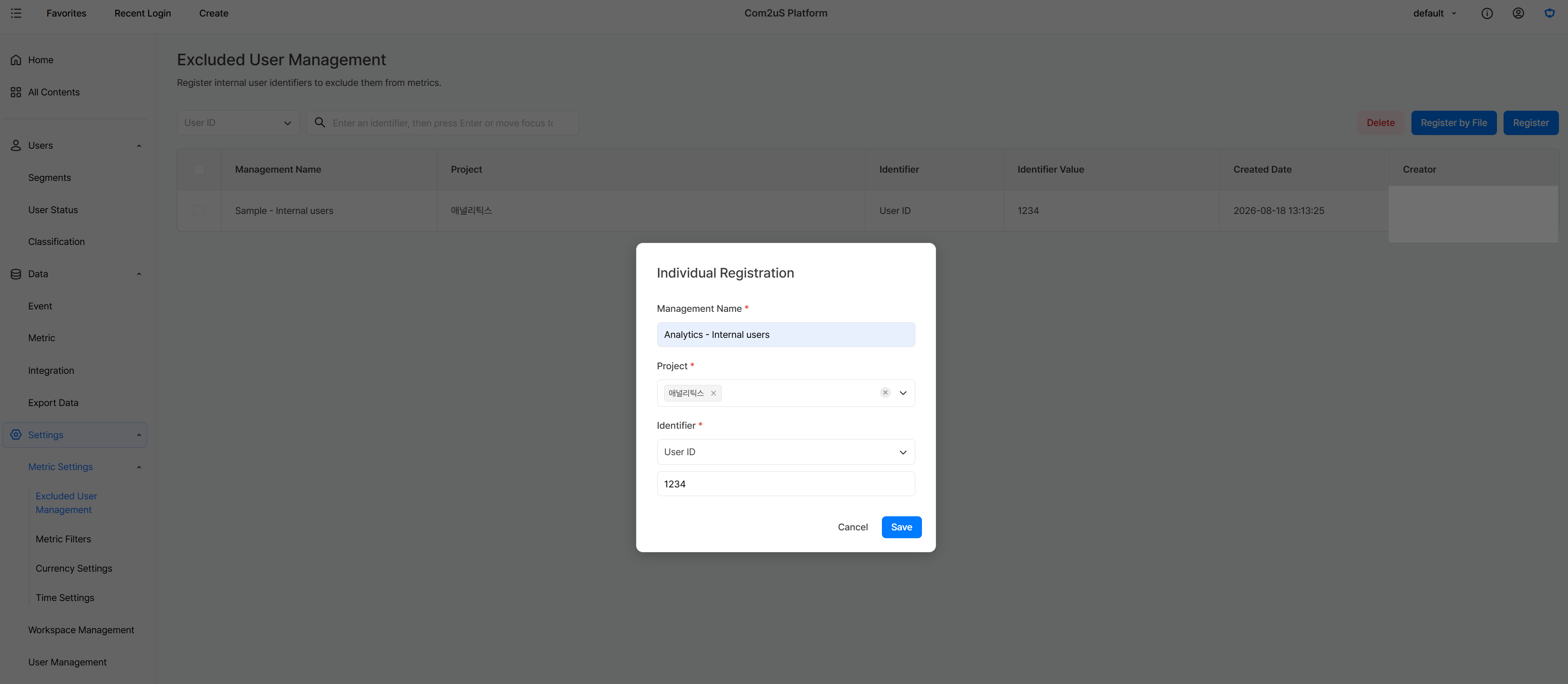
Excluded User Management in Hive Analytics is a feature that removes events generated by test purchases, QA testers, and internal staff from your metric totals. Register the accounts once per project, and you don't need to add the same filter to every chart again.
You can identify accounts by User ID or Device ID, and when there are many accounts, you can register them all at once via file upload. Events from excluded accounts are still collected, but they're left out of the totals, and the exclusion applies to every chart and dashboard that uses the metric. You can review operations based on real users without having to edit each existing analytics screen individually.
Checking Operations Based on Real Users
Metrics with internal accounts excluded can be applied to the screens teams use most often for operational calls — revenue, users, content, and concurrent users.
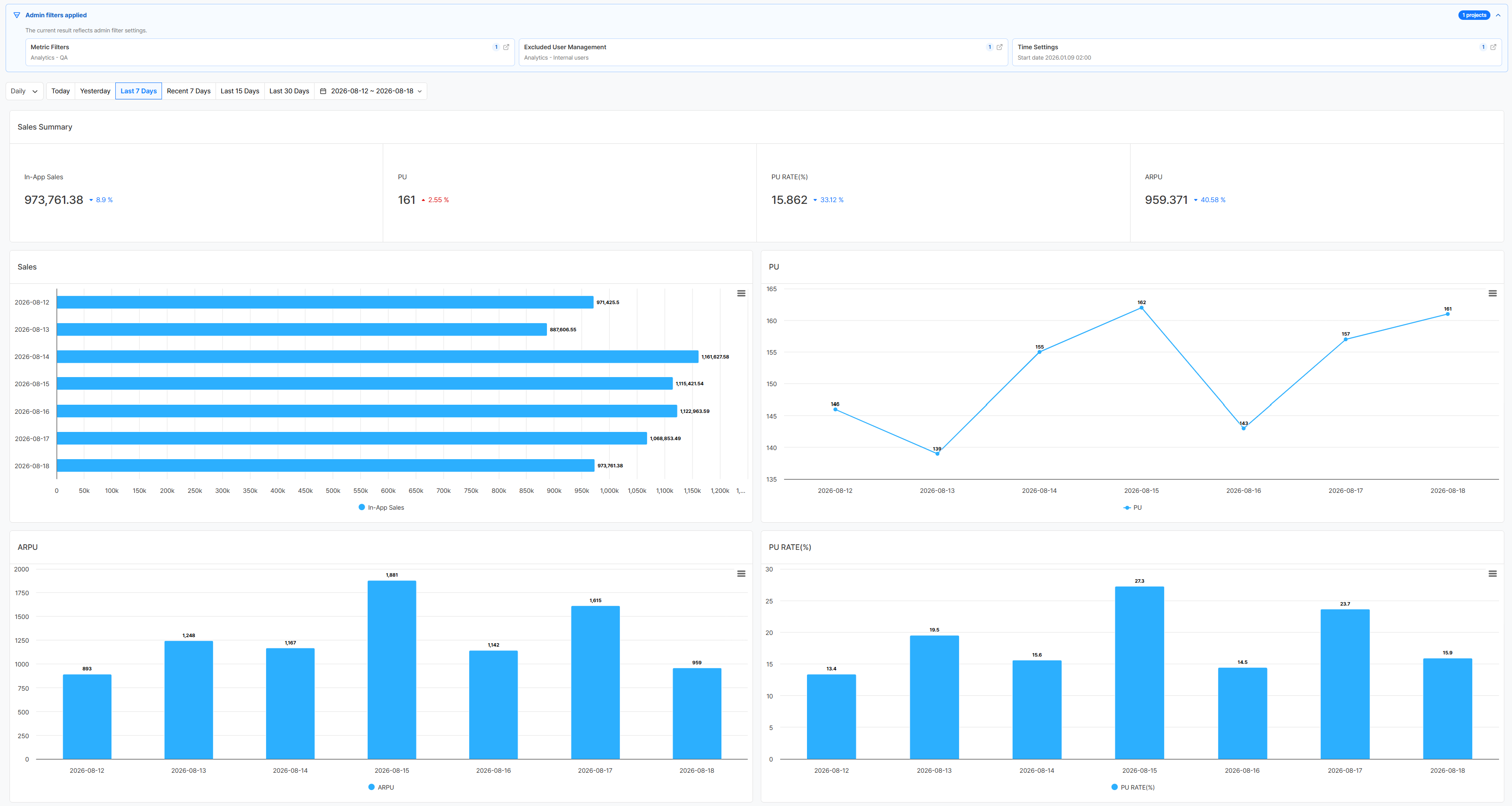
Revenue Trends Without Test Purchases
Verifying a new product listing or a payment integration can generate repeated test purchases, which can skew revenue, purchase conversion rate, Average Revenue Per User (ARPU), and Average Revenue Per Paying User (ARPPU). Excluding the accounts used for testing lets you review the real response based on real-user data.
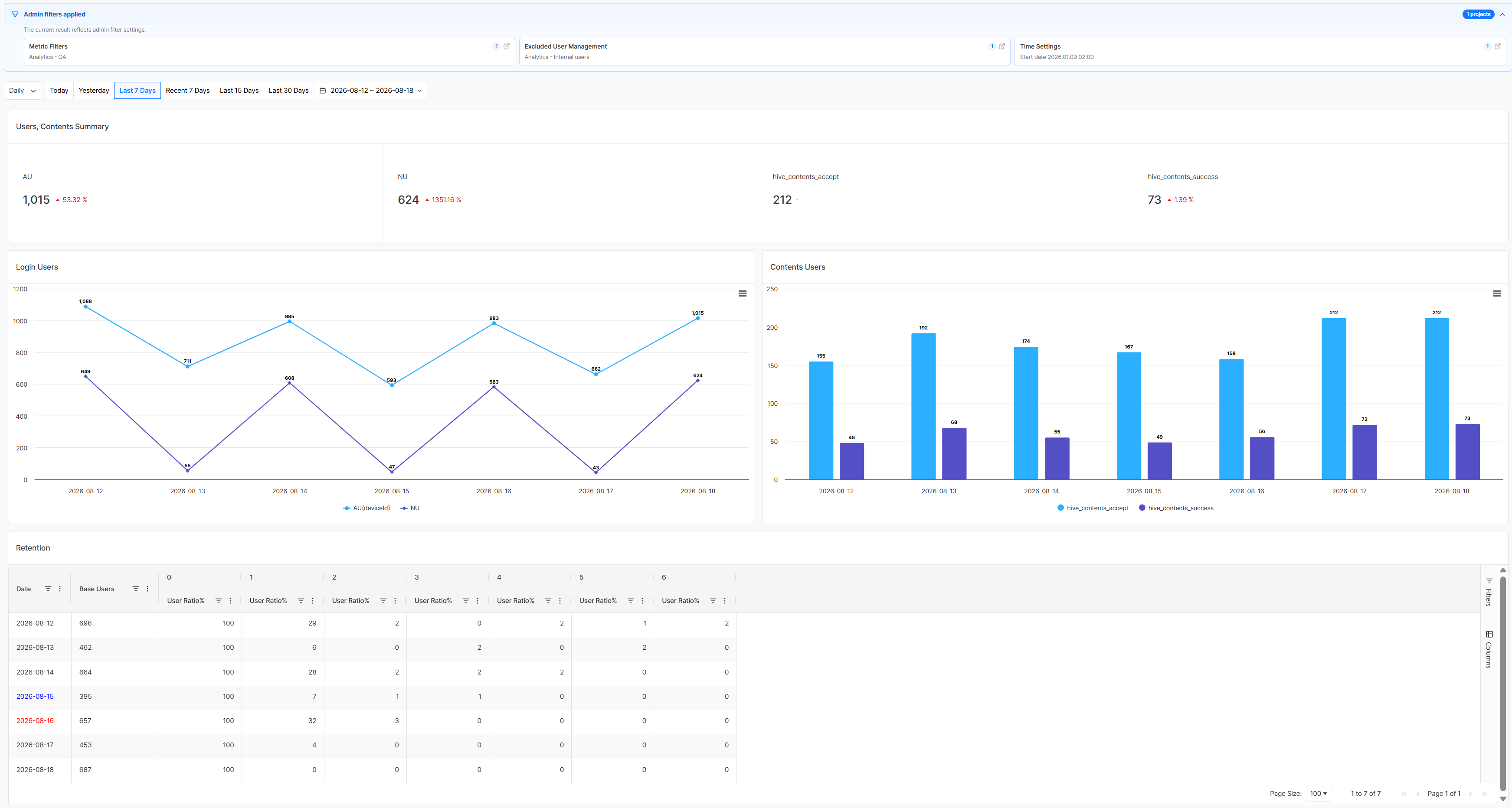
Live Content Engagement
Before and after a seasonal event goes live, QA testers and operators repeatedly check login and content status. Separating out that activity lets you judge progress based on real participation and retention.
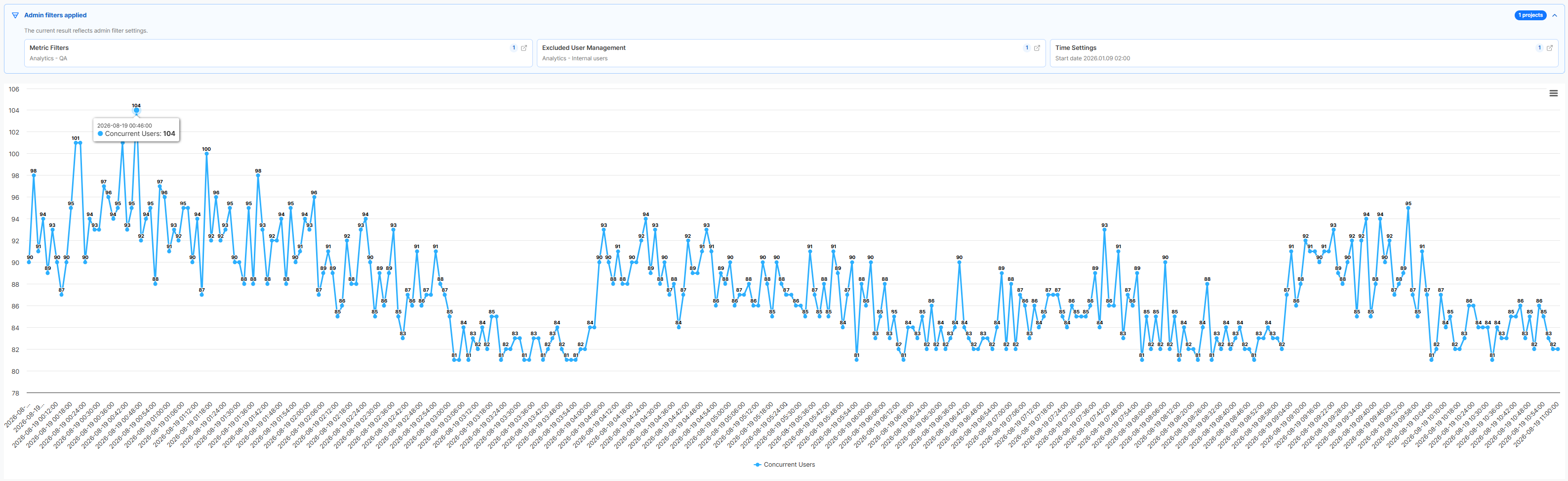
Concurrent Users After an Update
Right after an update or maintenance, internal staff are often the first to log in and check key features. Excluding those accounts from the concurrent-users trend makes it much clearer to see how real users are returning and whether the service is stable.
Get Started with Hive Analytics
Go to Hive Analytics > Settings > Metric Settings > Excluded User Management to register the User IDs or Device IDs of internal test accounts and QA testers as excluded. If you have many accounts to exclude, a file upload makes registration easy. Keep the excluded-account list updated regularly to maintain a consistent basis for analysis.
Hive Analytics automatically collects platform events such as login and purchases through the Hive SDK, alongside custom events your game sends, so you can review them with a focus on real users. Start now with Hive Analytics' Excluded User Management to separate out test activity and get an accurate read on the numbers that matter for game operations.